
Linux Command-Line Cheat Sheet

Linux is one of the most widely used operating systems in the world, and with such a high level of usage, it has essentially become one of the most important tools for any IT professional to have. A lot of Linux’s power resides in the terminal emulator.
In this article, I will share a Linux command-line cheat sheet to help you get started with using Linux. The commands mentioned below will serve as the foundation for working across the different distributions and families of Linux, as there are many of them.
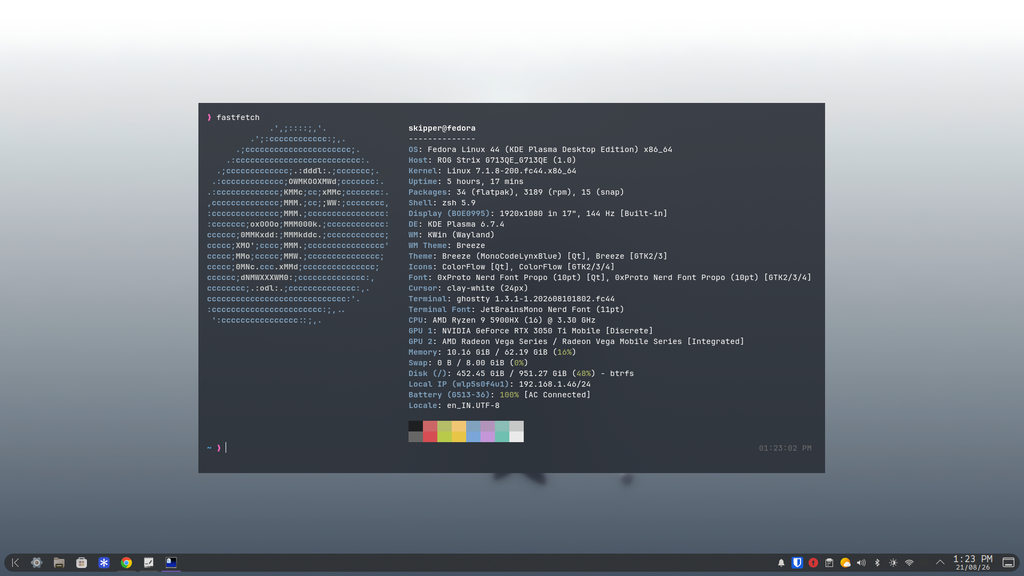
Get Started
I will start by explaining how the Linux terminal works. This is an oversimplified explanation to give you a basic understanding. The terminal is software that you use to communicate with the operating system. Anything you type into it is passed to a shell, which interprets the command and, when appropriate, executes the corresponding program.
For starters, one question that has plagued humanity for centuries: whoami.
whoamiAfter running this command, it will print your username, allowing you to know which user you are currently logged in as. It is also quite often used by attackers after they breach a system to determine which user they are operating as.
File Management
Let’s create a file. There are multiple ways to create a file, but one of the most common is the touch command. It is used to create an empty file or update the timestamps of an existing file.
If you want to create a file with some content, you can use the echo command. This command is used to print something to the screen, but you can redirect that output (hey, save this) to a file using >. For appending content, which means adding content to the end of an existing file, you can use >>.
Be careful, though: the single > symbol will overwrite the contents of a file if it already exists.
touch test.txtecho "Konnichiwa, World" > test.txtNow that you have created a file, you might want to delete it. For that, you can use the rm command. It can be used to delete both files and folders.
rm test.txtLet’s make a folder. To create a folder, you can use the mkdir command. This command accepts the name of the folder you want to create and will create it for you.
mkdir mynicefolderTo delete the folder you just created, you can use the rmdir command. It is used to delete empty folders.
If you have multiple files inside the folder, you will need to use the previous command with a cute little flag. A flag is a special option that you use to modify how a command behaves, allowing it to perform additional functions, such as deleting a non-empty folder.
For this, you can use rm -r. The -r flag stands for recursive , which tells the command to delete the folder and everything inside it.
rmdir mynicefolderrm -rf mynicefolderThere are two more useful commands you should know, the copy and move commands.
For copying files, you can use the cp command. It follows the syntax <file to copy> <location to copy to>.
cp test.txt /home/skipperFor moving files, you can use the mv command. It follows the same syntax as the cp command, but instead of creating a copy, it moves the file entirely to a new location.
mv test.txt /home/purpleshonenNavigation
Before we learn to move across different directories or folders, we need to know which directory you are currently in, and for that, there is a very useful command called pwd. It stands for print working directory , and it will print the directory you are currently working in.
pwdLinux filesystems follow a tree-like structure, and you can imagine it as an upside-down tree. You are moving towards or up the tree towards the root, and when you move to a different directory, for example /home/skipper, you are moving away and downward from the root. This will make more sense with the infographic below, and the root directory is / in Linux, unlike in Windows, where you typically have different drive letters such as C:\.
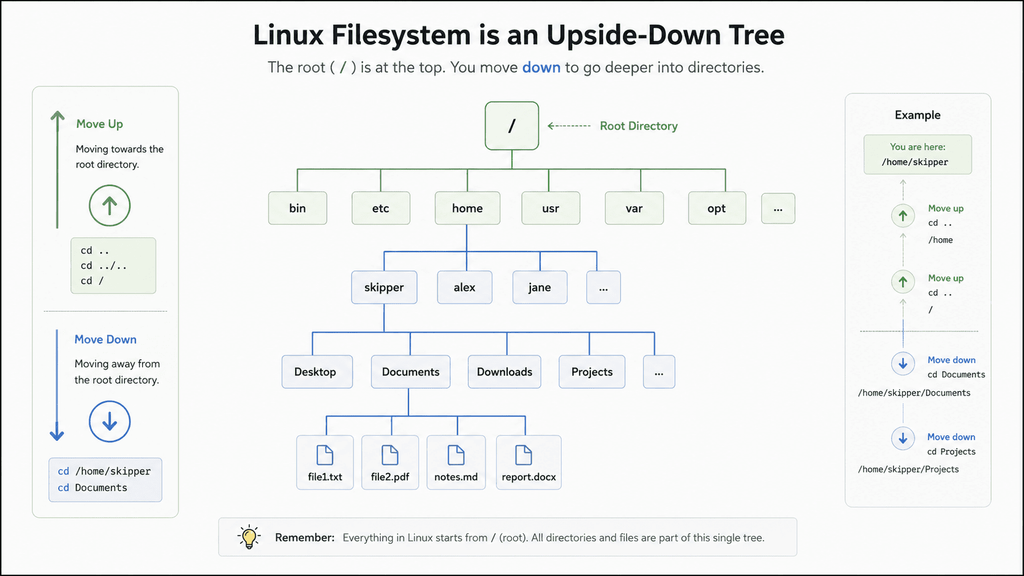
Before you can navigate around and change directories, you need to learn about the ls command, which is used for listing files and directories. If you don’t provide any <location>, it’s gonna print out the files and directories in the current directory.
lsIn order to move around, you use the cd command, which stands for change directory. In order to go back to the previous directory, you can use .., which acts somewhat like the back button in a file explorer and moves you one directory up. To change directory to another folder, you need to put the name of the directory you are trying to move into.
cd ..cd mynicefolderAs I mentioned above, Linux has a tree-like hierarchy. It also has two types of paths, and each works to achieve the same goal but works differently. These two are absolute paths and relative paths. I will explain these in a little more detail.
An absolute path starts from the root. An example of it would be /home/skipper/test.txt; this is an absolute path.
A relative path starts from the current working directory. For example, if you are currently in /home/skipper, you can use ../purpleshonen/ to move to the purpleshonen directory under /home. This is considered a relative path because it is resolved based on your current working directory.
I hope that makes sense. It’s important to understand, as it is crucial when moving around to different directories or using any command that requires a path.
Now that you have a good understanding of how to navigate around, and if you want to go to your home directory from any directory, then you can use the ~ symbol, which represents your home directory.
cd ~/Permissions
Linux uses discretionary access control (DAC) for its traditional file permission system, which means the owner of a file or folder can decide what permissions different users have, subject to the system’s permission rules. In Linux, to see the permissions of different files, you can use the -l flag with the ls command. It’s gonna show the permissions for the owner, then the permissions for the group, and lastly the permissions for others.
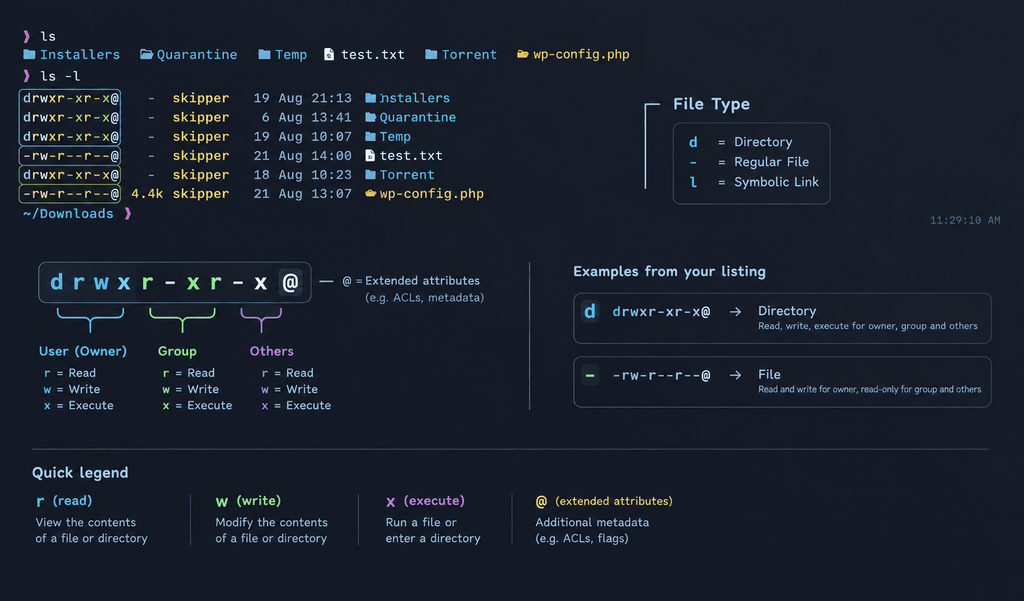
In order to change the permissions, we use the chmod command, which is short for change mode , aka changing permissions. In the example below, you will see how we can make a file or script executable by using the +x option and then the name of the filename.
chmod +x test.binTo remove the execute permission, you can change the +x to -x. Now the file will no longer have the execute permission that was previously added.
chmod -x test.binThere are multiple options you can use aside from the execute permission. For read permission, you can use the +r option, and for write permission, you can use +w. Being able to manipulate permissions is a very crucial part of the Linux system. You should familiarize yourself with chmod commands, as it’s a very useful yet powerful command.
Networking
Networking is also a very crucial part of Linux, and there are a few important commands you should be familiar with. Some of the important ones start with the ip command. This command is a very powerful utility that is used to manage networking, IP addresses, routing tables, and network interfaces.
To view the IP addresses configured on your system, you can use the address show argument to list and view them.
ip address showIf you specifically want to view IPv4 addresses, you can use:
ip -4 address showIn order to view the network interfaces available or check their state, you can use the link show argument, which will list and show all the available interfaces on your system.
ip link showThese were some of the common commands that would come in handy when using the Linux operating system, and below I will add a table of the most common commands used in everyday use that would be a valuable asset to learn.
Before I end this article, I have one last command.
If you don’t know what a specific command does or you want to learn more about any of the commands covered, then you can use the man <command name> command, which will open up a manual that you can read to further understand how to use that specific command and what other options it supports.
man <command>Cheat Sheet
Below are some of the most useful Linux commands that you should familiarize yourself with. The commands covered above are intentionally left out, so this section can serve as a quick reference for commands that you haven’t seen yet.
Files & Directories
| Command | What it does | Example |
|---|---|---|
cat |
Displays the contents of a file | cat test.txt |
less |
Lets you read a file one screen at a time | less test.txt |
head |
Displays the beginning of a file | head test.txt |
tail |
Displays the end of a file | tail test.txt |
file |
Determines the type of a file | file test.txt |
find |
Searches for files and directories | find /home -name "test.txt" |
locate |
Quickly searches for files by name | locate test.txt |
tree |
Displays directories in a tree structure | tree /home |
ln |
Creates links to files | ln -s /path/to/file link |
stat |
Displays detailed file information | stat test.txt |
Text Processing
| Command | What it does | Example |
|---|---|---|
grep |
Searches for text inside files or command output | grep "password" file.txt |
sort |
Sorts lines of text | sort names.txt |
uniq |
Removes or identifies repeated lines | uniq names.txt |
cut |
Extracts sections from lines of text | cut -d: -f1 /etc/passwd |
wc |
Counts lines, words, and characters | wc -l file.txt |
tr |
Translates or removes characters | tr 'a-z' 'A-Z' |
sed |
Searches and transforms text | sed 's/foo/bar/g' file.txt |
awk |
Processes and analyzes structured text | awk '{print $1}' file.txt |
diff |
Compares two files | diff file1.txt file2.txt |
Processes & System
| Command | What it does | Example |
|---|---|---|
ps |
Displays running processes | ps aux |
top |
Displays running processes and system activity | top |
htop |
Interactive process viewer | htop |
kill |
Sends a signal to a process | kill 1234 |
pkill |
Sends a signal to processes by name | pkill firefox |
jobs |
Shows jobs running in the current shell | jobs |
bg |
Sends a stopped job to the background | bg |
fg |
Brings a background job to the foreground | fg |
free |
Displays memory usage | free -h |
df |
Displays filesystem disk usage | df -h |
du |
Displays the size of files and directories | du -sh /home |
uptime |
Shows how long the system has been running | uptime |
uname |
Displays system information | uname -a |
hostname |
Displays or changes the system hostname | hostname |
lsblk |
Lists block devices and storage drives | lsblk |
mount |
Mounts a filesystem | mount /dev/sdb1 /mnt |
umount |
Unmounts a filesystem | umount /mnt |
Networking
| Command | What it does | Example |
|---|---|---|
ping |
Tests network connectivity | ping 8.8.8.8 |
ss |
Displays network sockets and connections | ss -tuln |
curl |
Transfers data from or to a URL | curl https://example.com |
wget |
Downloads files from the web | wget https://example.com/file.zip |
dig |
Performs DNS lookups | dig example.com |
nslookup |
Performs DNS queries | nslookup example.com |
traceroute |
Shows the route packets take to a destination | traceroute example.com |
hostnamectl |
Displays or manages hostname information | hostnamectl |
arp |
Displays or modifies ARP information | arp -a |
Users & Permissions
| Command | What it does | Example |
|---|---|---|
id |
Displays user and group information | id |
groups |
Shows the groups a user belongs to | groups |
sudo |
Executes a command with elevated privileges | sudo command |
su |
Switches to another user | su username |
passwd |
Changes a user’s password | passwd |
chown |
Changes the owner of a file | sudo chown user file.txt |
chgrp |
Changes the group ownership of a file | sudo chgrp developers file.txt |
umask |
Displays or changes the default permission mask | umask |
Archives & Compression
| Command | What it does | Example |
|---|---|---|
tar |
Creates or extracts archives | tar -cf archive.tar files/ |
gzip |
Compresses files using gzip | gzip file.txt |
gunzip |
Decompresses gzip files | gunzip file.txt.gz |
zip |
Creates ZIP archives | zip archive.zip file.txt |
unzip |
Extracts ZIP archives | unzip archive.zip |
Package Management
Package management commands depend on the Linux distribution you are using.
| Command | What it does | Example |
|---|---|---|
apt |
Manages packages on Debian-based distributions | sudo apt install nmap |
dnf |
Manages packages on Fedora-based distributions | sudo dnf install nmap |
pacman |
Manages packages on Arch-based distributions | sudo pacman -S nmap |
rpm |
Works with RPM packages | rpm -qa |
dpkg |
Works with Debian packages | dpkg -l |
Services & Logs
| Command | What it does | Example |
|---|---|---|
systemctl |
Manages systemd services | systemctl status sshd |
journalctl |
Reads systemd logs | journalctl -u sshd |
dmesg |
Displays kernel messages | dmesg |
service |
Manages services on systems that support it | service ssh status |
Shell & Environment
| Command | What it does | Example |
|---|---|---|
clear |
Clears the terminal | clear |
history |
Displays previously executed commands | history |
alias |
Creates command shortcuts | alias ll='ls -la' |
env |
Displays environment variables | env |
printenv |
Prints environment variables | printenv HOME |
export |
Sets an environment variable | export NAME=value |
which |
Shows the location of a command | which python |
whereis |
Locates binaries, source files, and manuals | whereis python |
type |
Shows how the shell interprets a command | type cd |
echo $PATH |
Displays the command search path | echo $PATH |
Useful Shortcuts
| Shortcut | What it does |
|---|---|
Ctrl + C |
Stops the currently running command |
Ctrl + D |
Exits the current shell or sends EOF |
Ctrl + L |
Clears the terminal screen |
Ctrl + Z |
Suspends the current process |
Ctrl + R |
Searches through command history |
Tab |
Autocompletes commands, paths, and filenames |
↑ / ↓ |
Moves through command history |
!! |
Repeats the previous command |
&& |
Runs the next command only if the previous command succeeds |
| |
Pipes the output of one command into another |
> |
Redirects output and overwrites a file |
>> |
Redirects output and appends to a file |
2> |
Redirects standard error |
2>&1 |
Redirects standard error to standard output |
This is by no means an exhaustive list of Linux commands. Linux has thousands of commands and utilities, and many of them are designed for very specific tasks. However, learning these commands will give you a much stronger foundation for working with the Linux command line.

Discussion
Questions, corrections or something to add? Sign in with GitHub to join in. Be kind and follow the community guidelines.